
Choice
Choice is an activity used to conduct a quick survey, designed to stimulate thinking on a particular topic, or for administrative purposes.
The teacher can ask a question and define several possible responses; student selections can then be made anonymously or with names.
Adding a Choice to the course site
1. Turn on Edit mode
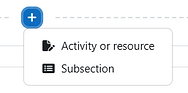
2. Choose a topic, click on and choose “Activity or resource”
3. Choose “Choice”.
4. In the "Choice name" field, enter the name of the survey - for example: "Choice of topic".
5. The question, instructions or an explanation of the survey can be added in the "Description" field.
6. Check the box "Display instructions on the course main page" so that the instructions appear on the course homepage.




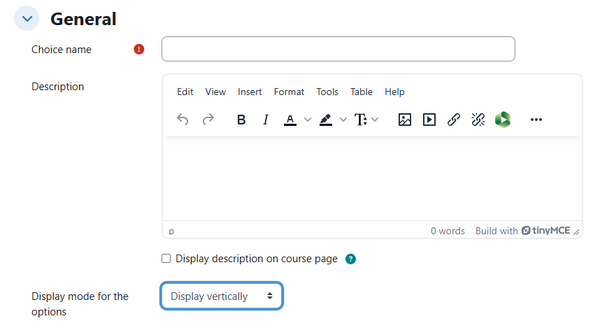
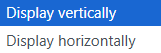
Choose whether the options are displayed vertically or horizontally
8. The following options are available for the survey:

Can students update their choice?
Can students select more than one choice?
Limit the number of participants that can select each choice option. When the limit is reached then no-one else can select that option.
At least one option is required.
Add three more options
If you chose "Yes" for "Limit the number of responses allowed", new fields will be added to the options:
9. The following options for the survey's results are available:


1
2
3

Display for students the number of spaces left
Set the limit for number of students
-
Publish results - Choose if and how the results will be displayed to students.
-
Show columns for unanswered - Show a column listing students who have not completed the activity.
-
Include responses from inactive/suspended users - Allow students who are inactive or suspended to complete the activity.
10. It is possible to set the completion of the Choice activity by requiring students to make a choice:

11. When finished, click "Save and display".

The following is the activity from a student's perspective:

1. To see the responses, select the "Responses" tab:

2. In the "Responses" tab, the teacher can see the number of responses per choice, and the students who chose them. It is possible to select specific students (by ticking their name), and either change their choice or delete it.


The responses can be downloaded in different formats, include text and Excel.